Showing posts with label System Center 2012 R2. Show all posts

Tuesday, February 27, 2018

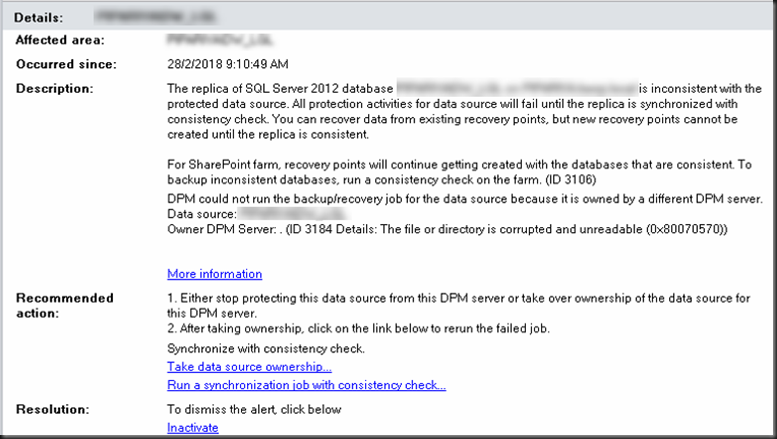
DPM 2012–Event ID 3184 Owner DPM Server

Recently I had an incident on the DPM 2012.  It’s the ActiveOwner issue.
image

I’m going to share with you how I done it.

The ActiveOwner files are located in "c:\program files\Microsoft Data Protection Manage\dpm\activeowner" on the server hosting the databases (SQL server being backed up). In my case it is one of the SQL server the DPM is protecting.  These ActiveOwner are used to manage ownership of databases, important for ensuring multiple DPM servers aren't attempting to backup/restore resources at the same period of time.


image

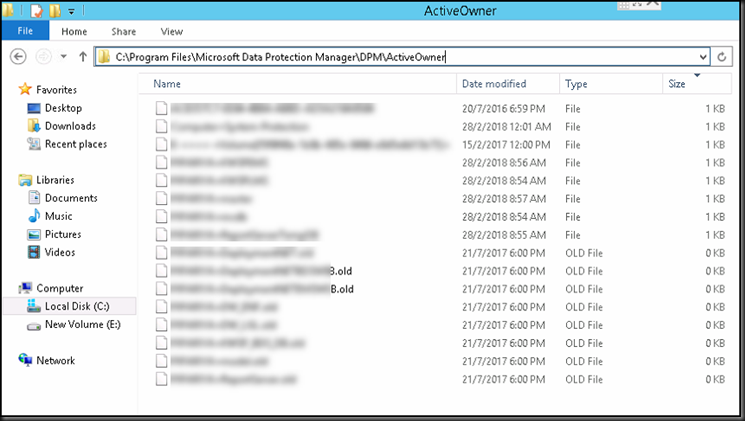
In the Protected Server that is running the SQL, from the Windows Explorer, drill to the location of:
C:\Program Files\Microsoft Data Protection Manager\DPM\ActiveOwner .

Rename all the files that is 0 KB. e.g. rename with the extention of .old
image

Next launch the Command Prompt in Administrator.

image

Change the directory to : C:\Program Files\Microsoft Data Protection Manager\DPM\bin in the Protected server (not DPM)

Key in as follow :
SetDPMServer.exe –DPMServerName DPMServerName

Note : Replace the DPMServerName with your DPM Server.  The rest of the syntax stays the same.


Rerun the Synchronization in your DPM Console.  It should resolved.

image

keywords : DPM, DPM 2012, DPM 2012 R2, Owner DPM Server ID 3184 The file or directory is corrupted and unreadable (0x80070570), DPM could not run backup/recovery job for the data source it is owned by a different DPM Server, Take data source ownership


Monday, February 27, 2017

How to remove “Unsupported Cluster Configuration” in SCVMM 2012

Recently I had a incident in one of the end user’s environment. 

The scenario is as follow :
The storage LUNs where the Virtual Machines resides had several Hard Disks failed.  There were not enough hotspare disks assigned to it.  The only way is to replace the faulty Hard Disks in the storage and then reconfigure it again.

Once it was done, the LUN was presented back to the Hosts and Failover Cluster recognize the LUN and then VMs were configured.

However, in the System Center Virtual Machine Manager (SCVMM 2012) has an issue.  It contained two identical records.  One is displayed as Running and another as Unsupported Cluster Configuration

image

Steps Taken

  • Ensure the VM is running in the Cluster
  • Launch the Virtual Machine Manager Command Shell in the Server that is running the SCVMM 2012
    (right-click run as administrator)
    image
  • Key in the command as follow in the VMM Command Shell that was launched :

    Get-SCVirtualMachine | where { $_.Name -EQ "Duplicate-ComputerName"} | fl name, status


    Note : Replace the Pink with your computer name that you want to remove from the SCVMM.   Remember the rest of the commands stay, including the quotes.
  •  It will display something like the screen below :

    SNAGHTMLb479c8
  • Next is to execute the command to  remove from the SCVMM database
    Get-SCVirtualMachine | where { $_.Name -EQ "Duplicate-ComputerName"} | Remove-SCVirtualMachine –Force

    Note : Replace the Pink with the computer name that you want to remove from the SCVMM.  The rest of the commands stays inclusive the quotes.  This is going to remove from the SCVMM DB but not removing the VM.  Remember the VM needs to be up and running.
  • In the SCVMM, the record will be removed and you need to do a refresh to once again get the information from the Cluster. 
    Right click on the Cluster in the VMM and click refresh

    image

After the SCVMM has completed the job (getting the information from the Cluster), the Unsupported Cluster Configuration is no longer in the record.  The one that is healthy is displayed in the cluster information.

A thank you to Aidan Finn and Law.

keywords : error 2604, unsupported cluster configuration, system center virtual machine manager, scvmm hyper-v, duplicate computer name in scvmm 2012, how to remove computer from scvmm 

Sunday, September 11, 2016

SCDPM – Protecting SQL 2012 & above.

To protect SQL Server 2012 or SQL Server 2014, the following must be done.

  • Login to SQL Server Management Studio

SNAGHTML1b7de7

  • Add the system account NTAuthority\System to the Sysadmin group on SQL Server
  • DPM cannot protect databases that are stored on remote SMB stores
  • Availability group replicas are configured as read-only
  • When you perform an alternate location recovery for a partially contained database, you must ensure that the target SQL instance has the Contained Databases feature enabled

Hope the above illustration helps


Wednesday, July 13, 2016

SCDPM–Job Failed to Cancel or Hung or Stuck BUT Cannot be remove

Environment
SCDPM 2012 SP1

It’s been hours the job has been cancelled but couldn’t be remove from the DPM job.  Can’t execute the next job due to the job is still in progress to cancel.   However, found the issue is with the SQL Database that is holding the job from being release. 

In the SCDPM console, it displays as below :

SNAGHTML6facbe

The following steps were carried out :

  • Launch the SQL Server Management Studio (<right-click> run as Administrator)

Once it’s launched, ensure DPM DB is connected

Copy the script below :

USE DPMDB

BEGIN TRAN

-- mark replica as invalid if there was some operation happening on that replica

UPDATE tbl_PRM_LogicalREplica

SET Validity = 1 -- Invalid

WHERE OwnerTaskIdLock IS NOT NULL AND

Validity <> 5 AND -- ProtectionStopped

Validity <> 6 -- Inactive

-- Release all the locks held

UPDATE tbl_PRM_LogicalREplica

SET OwnerTaskIdLock = null,

Status=8

if (select COUNT(name) from tbl_AM_Agent where Name like 'DPM RA v2%') > 0

begin

exec sp_executesql N'UPDATE tbl_RM_ShadowCopy

SET ArchivetaskId = NULL,

RecoveryJobId = NULL'

end

UPDATE tbl_ARM_Datasource

SET Status = 0,

OwnerLockId = NULL

DELETE tbl_RM_DatasourceServerlock

DELETE tbl_RM_ShadowCopyLocks

-- Set All running tasks and jobs to failed

UPDATE tbl_TE_TaskTrail

SET ExecutionState = 3,

LastStateName = 'Failure',

StoppedDateTime = GetUtcDate()

WHERE ExecutionState NOT IN (2,3)

UPDATE tbl_JM_JobTrail

SET JobState= 'Failed',

EndDateTime = GetUtcDate()

WHERE jobstate= 'Execute' OR jobstate= 'Retire'

-- unreserve resources held

UPDATE tbl_MM_Global_Media

SET ReservationLevel = 0,

ReservationOwnerMMId = null

UPDATE tbl_MM_Global_Drive

SET ReservationLevel = 0,

ReservationOwnerMMId = null

UPDATE tbl_MM_Global_IEPortResource

SET ReservationLevel = 0,

ReservationOwnerMMId = null

COMMIT TRAN


  • Click on New Query
  • Paste the Script into the Query Column
  • Click Execute

SNAGHTML8c5e05

  • Check on the OUTPUT column below
  • Close the SCDPM console and open it back.  It should clear the status and be able to execute whatever job that is outstanding.

Hope this helps.   Works on SCDPM 2012 R2 too. 

Resource of the script is from here.

Thank you.

keywords : SCDPM, Data protection manager 2012 SP1, SCDPM 2012 SP1, SCDPM 2012 R2, Job cancel but hang, cancel job failed

Tuesday, June 28, 2016

PowerShell–Get-VM command is not recognize or missing

Currently I’m supporting one of the customer, found out that the PowerShell is in version 1.0 in the SCVMM.  Therefore, I tried to execute a script using the get-vm but it says as not recognize.

The message was :

PS C:\Users\Administrator\Desktop> Get-VM
The term 'Get-VM' is not recognized as the name of a cmdlet, function, script file, or operable program. Check the spelling of the name, or if a path was included, verify that the path is correct and try again.
As a workaround, I’ve execute the command as below :

Import-Module virtualmachinemanager

Then the get-vm command works.

keywords : SCVMM, get-vm missing, get-vm command not recognize, powershell command not recognize.

Friday, March 11, 2016

DPM 2012 Reporting Issue (ID : 220)

After upgrading from SCDPM 2012 SP1 to SCDPM 2012 R2, I hit the issue when I tried to configure the Reporting to be send out periodically in the Report Module of SCDPM 2012 R2.

image

The steps taken was the following :

  • Launch the Reporting Services Manager (in my example is SQL 2008 R2, since it’s upgraded gradually from SCDPM 2012 SP1 to SCDPM 2012 R2)
  • Ensure to the correct database that I’m pointing to  (e.g. MSDPM2012)
  • Navigate to E-Mail Settings.
  • Key in the valid Sender Address and SMTP Server.
  • Click Apply

SNAGHTML5532c4a

  • Launch the SCDPM 2012 R2 – Reporting
  • Configure the schedule reporting with emails, tested with no issues.keywords : SCDPM 2012, DPM cannot enable e-mail subscription for reports unless SMTP details are configured in the remote SQL Server Reporting Service Installation. SMTP details need to be configured manually when an existing SQL Server is chosen to be used for DPM during DPM setup.  Please enter the SMTP server name, SMTP port number and SMTP From address manually in the SQL Server Reporting Services configuration File.
    Configuration file path : c:\Program Files\Microsoft DPM\SQL\MSRS10.MSDPM2010\Reporting Services\ReportServer\RSReportServer.config
    The SMTP Server  details on the SMTP Servers tab in the Options dialog enables only DPM alert notifications. For more details, see DPM Help (ID : 220)
    SCDPM Report error, Systems Center Data Protection Manager Report Error, cannot configure email distribution in DPM report

Thursday, October 8, 2015

DPM Reporting – An error has occurred during report processing

I hit an issue on launching the DPM reporting.  The DPM is functioning well except the reporting.  It’s the issue of the SQL Reporting settings.

image

It stated as :

An error has occurred during report processing. (rsProcessingAborted).
Query execution failed for dataset ‘DataSet2’. (rsErrorExecutingCommand)
Invalid object name ‘vw_DPM_Replica’.

Steps taken to resolve :

  • Launch the Reporting Services Configuration Manager in the DPM
image
  • Select the Report Manager URL on the left panel
  • Click on the URL on the right panel

image

  • Double-click on the DPMReporterDataSource
image
  • The Connection string is missing.
  • Minimize this screen

image

  • Create a file call dbtest.udl on the desktop (it’s a build in Windows)
  • Double click on it.

image

  • Once the Data Link Properties launch, Select the server name (using the drop down)
  • Use the Windows NT integrated security for the credential
  • Select the database (using the drop down)
  • Click Test Connection

image

  • Click OK once it’s successful

image

  • Right-click on the dbtest.udl and open with notepad

image

  • Copy the text from “Intergrated ….. “till the end of the line

image

  • Maximize the DPMReporterDataSource
  • Paste the copied text into the Connection string.
  • Click on Test Connection (may request to key in password again)
  • Once successful, click Apply.

Launch the DPM reporting with no issue occurred.

keyword : DPM, SQL, SRSS, Reporting Services, rsErrorExecutingCommand, rsProcessingAborted, dataset, query execution failed, invalid object name

Thursday, August 13, 2015

Azure Recovery Services–backup increased to 54TB limit

Earlier last month I shared on how to configure the DPM 2012 R2 with Azure Recovery (Backup Vault)

Microsoft Azure recovery Services team has officially released the backup per protection group from 1.7TB limit and now to 54TB limit on 12th Aug 2015.

You need to have the Azure Recovery Services Agent 2.0.8715.0 or higher in order for the backup to exceed the limitation of 1.7TB.

image

The news release is here.

keynote : Azure limit, ASR, Azure Recovery Services, DPM, SCDPM, storage limit.backup limit

Friday, July 31, 2015

Class 20409B - Server Virtualization with Windows Server Hyper-V and System Center


Just finished conducting a 5-days class on Server Virtualization using Hyper-V and System Center.  During class, I shared real life scenarios on how it was implemented, what are the obstacles they will face if planning were not done properly in the first place before rolling out.

Feeling happy that the students went back with knowledge.

keywords : 20409, Hyper-V, virtualization, backup, protection, VMM, virtual machine manager, dpm, azure, cloud, vmmlibrary,